
When a user requests permission to add our app to their MS 365 account, it may require admin approval.
The following instructions show how an organization's IT admin can grant global approval for a specific app, to all users within the organisation within the organisation.
Log in to the Azure Admin Portal as a Global Administrator, Application Administrator, or Cloud Application Administrator for the organisation.
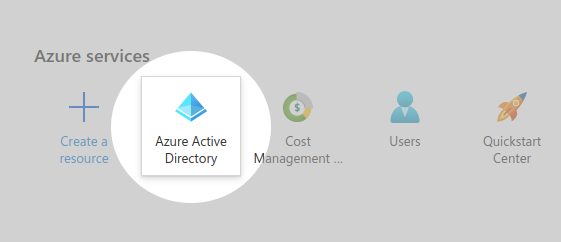
Find and click on the tile marked 'Azure Active Directory' to be taken to the AAD overview screen.
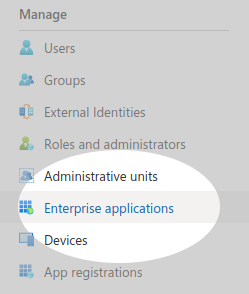
Click on the 'Enterprise applications' item in the side menu to see the list of connected and pending applications for your organisation.
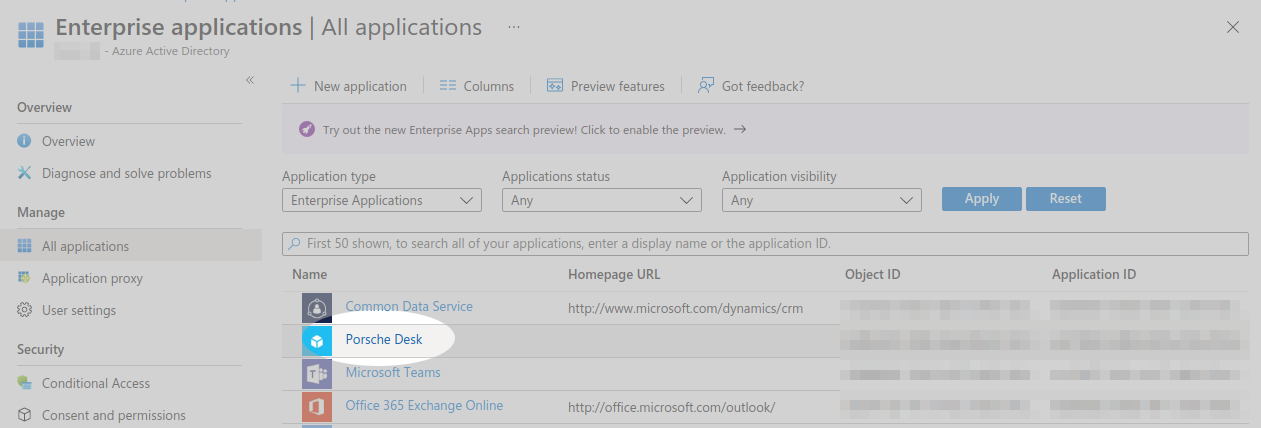
Choose our application from the list of available applications.
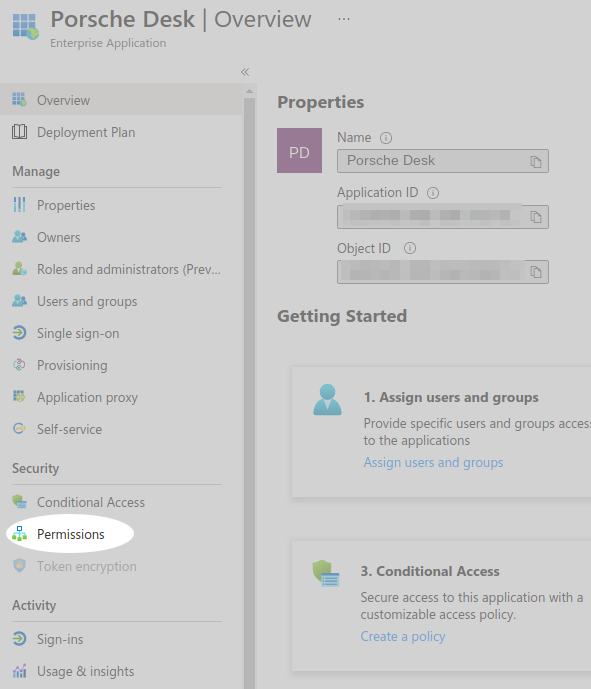
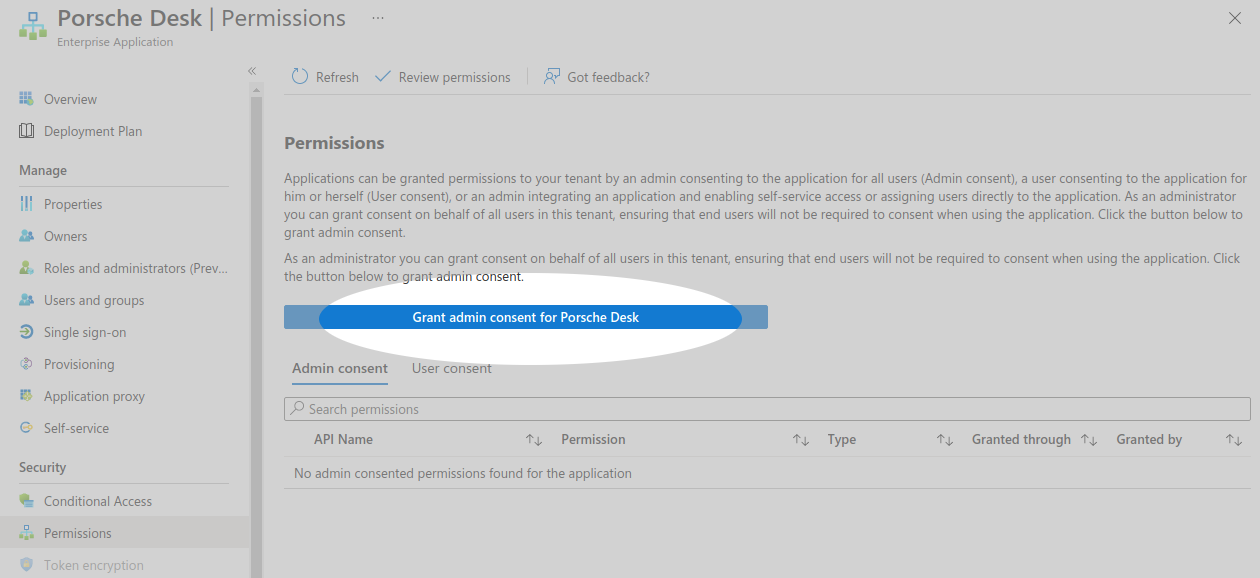
Followed by the 'Permissions' item in the side menu.
Click on the "Grant admin consent ..." button to start the consent approval process.
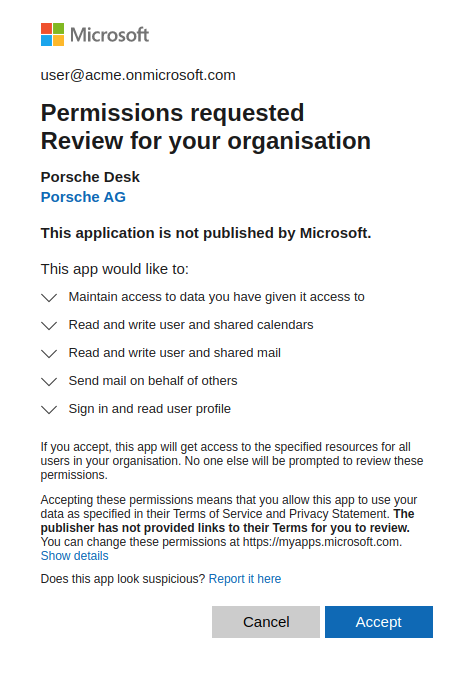
A window will open prompting you to review the requested permissions. If you are happy to grant those permissions then click the 'Accept' button.
If the process is successful, a notification will appear in the top of the screen.
